


1. QRV: Are You Ready?
It’s Tuesday morning and I’m just starting to draft Random Wire issue 208. Normally, I have most of the newsletter done. The structure is built, most of the sections are populated, etc. This week, though, didn’t go that way.
The good news: I got more radio time in, including resurrecting an AllStar node I had shut down and stuck in a corner because of a bad fan. I was also able to help a couple of radio amateurs solve their problems. Very satisfying.
The bad news: the first really heavy rains arrived in the Pacific Northwest. I had hoped to get some fishing in but instead my Livingston dinghy has turned into a rain collector. It looks very sad with the hull half full of water. I got it pumped out, and two days later, a heavier rain event filled it overnight.
I have a “Dad-vention” that I call my pump on a stick. It’s a small electric bilge pump hose-clamped to a wooden walking stick. I can stick it down into the water, connect the wires to my portable battery, and just stand there while the pump shoots water out the discharge hose, over the side of the boat. Simple. Perhaps silly. But I smile a little bit each time I use it.

2. Thank You, George!

I was surprised and humbled this week to find the Random Wire linked in the show notes for Ham Radio Workbench Episode 275. It turns out that my Oregon nearly-a-neighbor George Zafiropoulos KJ6VU gave it a shout-out on the show. Here’s what he said (lightly edited from the auto-transcript):
“If you’re interested in following AllStar or other things that are kind of in the similar vein, my friend Tom Salzer, KJ7T, has a really great blog. It’s called The Random Wire. … He basically talks about his personal radio projects, and a lot of it is things like building an AllStar node or M17 or some other kind of digital technology. … I find it really helpful to see what other people are doing and think, ‘Oh, that sounds like a good idea,’ or ‘I should take that idea and use it myself.’”
Thank you, George. Coming from someone I’ve long looked up to, that means more than I can put into words.
If you came here from the podcast, welcome! The mention starts at 1:36:28 in the video:
The episode itself — an interview with JoeBrett Wicker K5YVY about his APRS PropView tool — is definitely worth a listen.
3. QST: News & Notices
3.1 QSO One Adds Beacon, a Worldwide Voice Chat Room
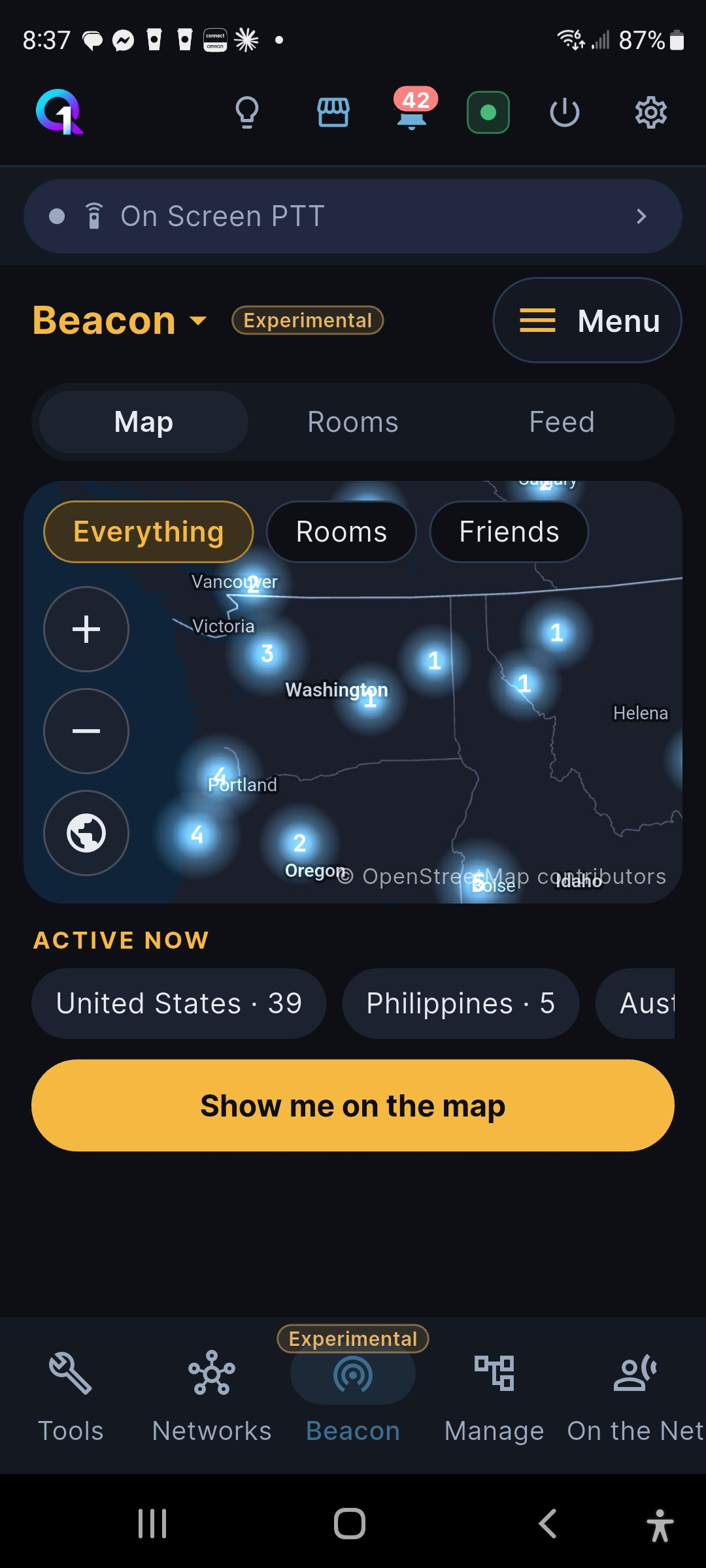
QSO One, Frank KD8JKK’s all-in-one app for AllStarLink, EchoLink, DMR, M17, YSF and more, has a new module called Beacon in its latest update. The app labels it Experimental. Beacon works differently from the rest of the app. It doesn’t connect you to a radio network. It’s internet voice chat for hams, organized into rooms, with a map showing who’s on and where they are.
A reader, Dave, sent me a note about it. He spent most of a day listening to the general United States room. He said it sounded like an HF ragchew with much better audio. He was also struck by how many people there had given up their radios after a move, because of health, because of cost, or because of where they live now. For them, Beacon is a way back into the conversation.
I installed it on my phone, and it works. When I checked, the Active Now list showed 39 people in the United States, 5 in the Philippines, and more in Australia. There were clusters around Puget Sound and Portland. The app has Map, Rooms, and Feed views, filters for Rooms and Friends, and an on-screen PTT button.
My previously expressed reservations about QSO One are structural, not about how well it works: it’s a closed-source app from a single developer, and it changes quickly, so features can come and go.
Even so, it’s close to an all-in-one app that fits in your pocket. AllStarLink, EchoLink, DMR, M17, YSF, and now Beacon are all in one place, so you’re not tied to your shack or your vehicle to get on the air. For how much it does, it’s also relatively easy to use. Beacon adds something more: a voice for hams who no longer have a radio or a working station for these modes. If that describes you, or someone in your club, it’s worth a listen.
3.2 QSL Shack: It’s New

An email from Jon KN4DZD says:
It’s a FULL social media platform for ham operators including logbook with QRZ & LoTW integrations (POTA and eQSL both close to complete and being tested now), a logging API, QSL card designer & auto-exchange on match, and a whole bunch more. We just launched on 11/1/2026 but we’re gaining traction fast! Check it out at https://qslshack.com. It's 100% free, no credit card needed, and we're pretty proud of what we've built.
QSL Shack looks pretty interesting. As Jon said: check it out!
3.3 RadioMail adds Mercury, an open-source HF modem
Georges WH6AZ at Island Magic Co. says RadioMail, his Winlink client for iPhone and iPad, now supports Mercury as an experimental modem. Mercury is the fully open-source HF modem from Rhizomatica. It came out in May and has been talked about as an open alternative to VARA. There’s now an iOS build of the modem in the App Store, and RadioMail can connect to it. That means HF Winlink email from a phone, with no Windows PC in the loop.
Georges is clear that this is very early. You launch the modem app yourself before connecting. Because of iOS USB limits, the only supported audio interfaces are the Digirig Lite and the AIOC, so there’s no CAT control and you set the frequency on the radio by hand. Only a handful of gateway stations run Mercury so far, and you have to enter them manually. However, RadioMail can also listen for peer-to-peer connections, so two RadioMail users can try it today without a gateway. He also warns that if a better open modem comes along, Mercury support could be dropped.
If you run a Mercury station, Georges wants to hear from you so he can help other people find it. Setup is in the app’s “Experimental modems” help section, and there’s a public roadmap where you can vote on which modem comes next.
More: radiomail.app | github.com/Rhizomatica/mercury
My take: HF Winlink email from your phone without a PC is a big deal. And the timing is interesting. Earlier this fall, xara showed up: an open-source, VARA-compatible modem for Linux. Then VARA’s November update changed VARA HF’s waveform starting in 2027, which pulled the rug out from under xara.
Mercury doesn’t talk to VARA at all. It’s a separate, fully open waveform, so the network is tiny for now. It also has serious backing: Rhizomatica built it, with ARDC funding, partly to get its own HERMES system off VARA’s per-radio licenses, and it’s already carrying traffic for nearly 90 radios in Indigenous communities in the Ecuadorian Amazon. ARDC has a good writeup titled: Rhizomatica’s HERMES and Mercury Expand Open-Source HF Communications for Remote Communities While Appealing to Experimenters
For hams who want to move off a closed, Windows-only modem, RadioMail already offers ARDOP, an older open mode that’s slower, and now Mercury adds a modern one that runs on a phone.
4. New on EtherHam
4.1 Recipe: Renumber an AllStarLink 3 Node
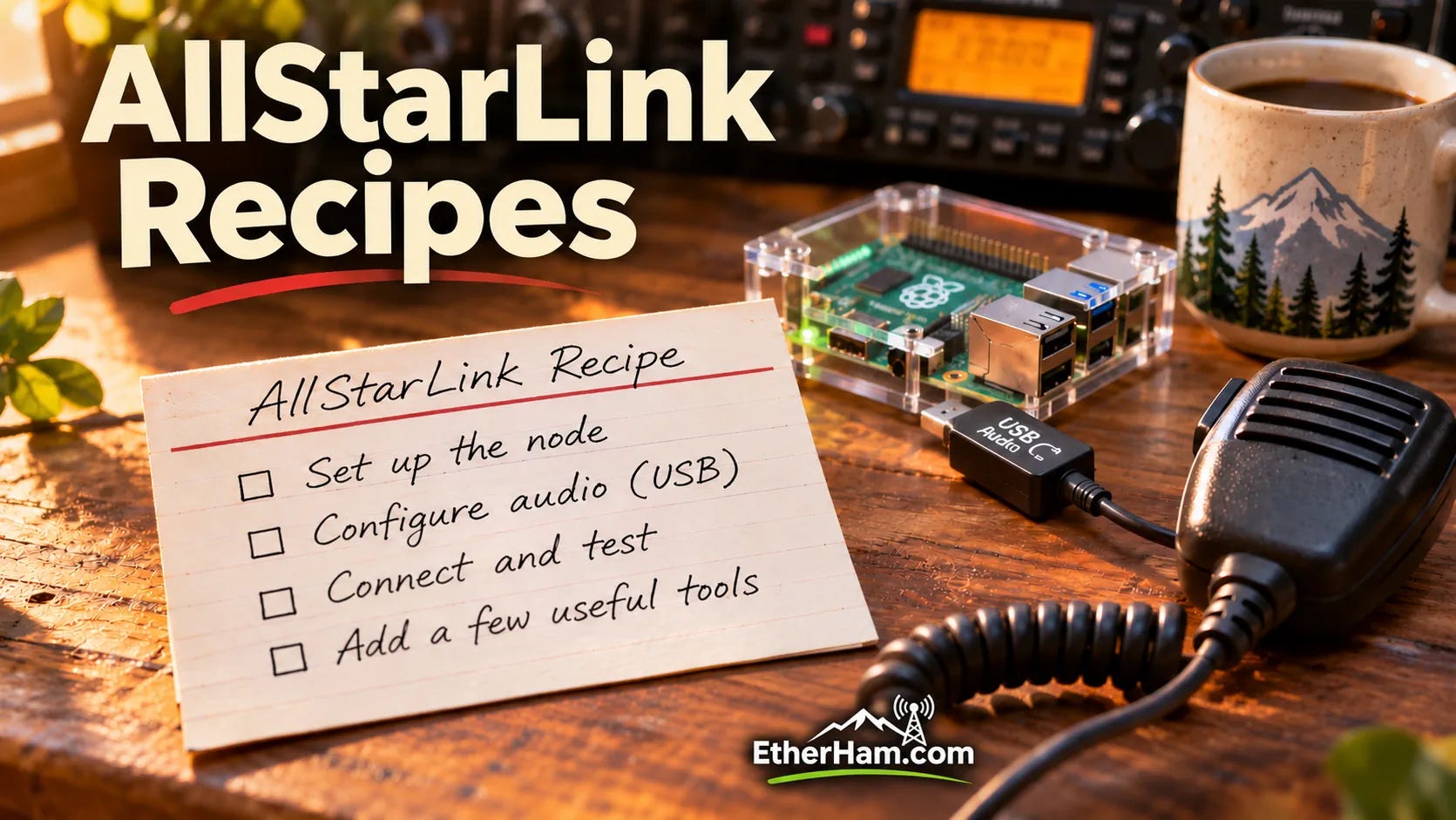
Giving an existing node a new number turns out to touch about ten files, not one. If the node has also moved to a new network, its old IP address hides in several more. This recipe finds every one, fixes them, and ends with the real test: a node outside your home network connecting to yours. I tested it by renumbering one of my own PC nodes.
Follow the recipe: Renumber an AllStarLink 3 Node
4.2 Recipe: Upgrade an AllStarLink 3 Node from Debian 12 to Debian 13 (In Place)
This one is marked advanced. It takes a working ASL3 node from Debian 12 to Debian 13 without reinstalling, so your node number, settings and dashboards carry over. Along the way it installs the new ASL Web UI, which needs Debian 13. There’s an optional phase for stripping out a leftover desktop, which freed more than half the memory on my node. There’s no rush, since AllStarLink plans to support Debian 12 until Debian 14 ships, expected around the third quarter of 2027. If a plain fresh install sounds easier, it is.
How to upgrade in place: Upgrade an AllStarLink 3 Node from Debian 12 to Debian 13
4.3 SimpleUSB (simpleusb.conf) — Reference Guide
This is my reference to the settings that connect your node to your radio, checked against AllStarLink’s docs, the stock config file and the driver’s source code. It sorts every setting into three paths, so you know whether a problem is in how you sound on AllStar or how AllStar sounds on your radio. It also covers the look-alike setting names that trip people up. Choppy audio? There’s a section on checking the network before you touch a single level.
Read the guide: SimpleUSB (simpleusb.conf)
4.4 Linux: One Command — systemctl status asterisk
You key up, and nothing happens. Before you reboot or start digging, one command tells you whether your node software is even running, and the first clue if it isn’t. It only looks, so it can’t break anything.
Learn about systemctl: Linux: One Command — systemctl status asterisk
4.5 Weekly Report: November 12, 2026
This week, one source produced nearly 20 items, each with the same title pattern. Suspicious. I think an algorithm produced that content, and some of it included software package names I’ve never heard before and couldn’t find. So I suppressed that output this week and I’ll keep an eye on it in the future.
From the Short Stack portion of the Weekly Report:
Open versus closed, out loud. OH8STN asked readers whether they’d pick VARA or the open-source XARA, and by week’s end a Zero Retries thread reported XARA discontinued (see the Groups.io Digest below). The M17 Project posted an essay asking who open source is actually open for, and K9ZW wrote about “radio by permission” versus “radio at liberty.” RTL-SDR Blog adds a practical example: custom OpenRTX firmware decoding TETRA voice on a Retevis C62. Read together, these are one extended conversation about who controls the modes and radios we use.
M17 had the busiest digital-voice week. Six M17 Project posts: LinHT Rev C is running, M17 on the Unihertz Atom XL, an AES256 plus ECDSA test with OpenRTX and SDR#, a new SDR# plugin, and a report from OpenAlt 2026. Elsewhere the news feeds were quiet: no D-STAR or DMR stories, and the only AllStar item was the Pocket Shack app for Apple devices. The code-level activity for those modes is in Digital Radio News below.
Your phone and your browser are the receiver now. The D325f-SDR project turns an LG phone into an SDR good enough for Meteor-M HRPT, and Hackaday picked it up too. Clever Quest Lab and OFFgrid-SDR do decoding entirely in the browser, the ATS Mini Controller adds a browser-based RTL-SDR mode, and SatHunterSDR hunts CubeSats from an Android phone. Less and less of this needs a PC in the shack.
Satellites as a playground. The oddest item of the week: an ESA satellite ran Doom after amateur radio operators sent it voice commands. ARISS announced an eight-day SSTV event, and Amateur Radio Daily suggests practicing on a known recording before the next pass. With SatHunterSDR in the mix, it was a good week to get on the birds.
Security: old flaws, long tails. A combined OpenSSH and musl-libc flaw let anyone into Alpine Linux with a long enough password, a PHP post-mortem showed the bug was known two years before PHP2Shell, and Google found a certified Android TV maker had backdoored 1.3 million set-top boxes. Two automakers’ connected cars could be unlocked and started remotely. The Binance heist started with a poisoned Homebrew download. On EtherHam: Patch the APT Flaw on Your AllStarLink Node
AI and open source, both directions. Linus Torvalds says AI fixes drove most of the progress in the latest kernel, while a memory-management reviewer stepped down over a flood of AI-generated junk patches. A developer reverse-engineered DisplayLink with Claude and got a cease-and-desist from Synaptics, and another found 23 Prusa firmware defects in a week of testing with Claude. The cautionary tale: an agent asked to renumber pages deleted a professor’s syllabus.
QMX week at K9ZW. With Varying Frequency ran FT8 at 3.2 watts on a QMX+ with a Tab5 display and logged QSOs with both QMX models, and QRPer had VE3QEE’s overview of the QMX Tab5 panadapter.
Also running through the week: a steady stream of POTA and SOTA reports, including K7TQ on Steptoe Butte here in Washington; the 1934 story of W7DIZ building a rig during a storm on Tillamook Rock; a batch of Mac Ham Radio iOS releases; ESP32 boards replacing Pis for small jobs; holiday gift guides; Sweepstakes and the Radio 1929 QSO Party; and the launch-supply crunch in Space.
5. AllStarLink
In keeping with George’s shout-out about the Random Wire newsletter and AllStar, this issue has several AllStar-related items.
5.1 ASL Node Check Script Updated
asl-node-check is now at version 2.3. This week brings two fixes, and both are worth having.
Leftover services. If you’ve ever removed something like DVSwitch from an AllStarLink 3 node, part of it may still be running in the background. The old check reported that as a service needing a restart, and then the update script failed with a confusing red error. The check now recognizes these leftovers, explains what they are, and offers to stop them.
A permissions bug. I found this one while checking my nodes for the new Apache HTTP/2 vulnerability. It showed up on only one node, the one I upgraded in place from Debian 12 to Debian 13. None of my other nodes had it. On that node, when the update script turned on automatic security updates, it made the file /etc/apt/apt.conf.d/20auto-upgrades readable by root only. Automatic updates kept working, but every apt command I ran without sudo complained:
Warning: Unable to read /etc/apt/apt.conf.d/20auto-upgradesVersion 2.3 fixes the cause and repairs the file’s permissions on nodes that already have the problem, so the warning goes away.
To get version 2.3, log in to your node and download a fresh copy of the check:
wget -O asl-node-check.sh https://etherham.com/asl-node-check.shThen run it:
sudo bash asl-node-check.shAs always, the check only looks. Nothing on your node changes unless you answer yes at the end. The source is at github.com/EtherHamRadio/asl-node-check
5.2 ASL Web UI: A First Look
AllStarLink has a new web interface for running an ASL3 node from a browser. Its package name is asl-web-ui, it’s at version 1.0, and after a morning using it I’m feeling good about it.
Here’s the short version: this is a great bit of software for ASL3 node owners. Unlike Cockpit — which is a general Linux server console that knows nothing about AllStarLink — Web UI is built around the node. Version 1.0 is a solid step toward helping people operate and maintain their nodes.
The ASL Web UI (package asl-web-ui) manages an AllStarLink 3 node server from a web browser. It looks and works like the Cockpit web console and covers nearly everything the text-based ASL3 Menu does: setting up nodes, tuning radio interfaces, managing Asterisk and Allmon3, backups, diagnostics and more.
If you’ve used Cockpit, you’ll feel at home: a menu down the left side, the work on the right. What each one manages is different, though. Cockpit manages the Linux computer. The Web UI manages the node. Beyond the list above, it also tunes a radio interface with live level meters, allows or blocks other nodes, programs the SA818 radio modules in interfaces like the SHARI, and gets you a free Let’s Encrypt certificate.
What I like most is how careful it is. It never writes a configuration file without first showing you exactly what will change, removed lines in red and added lines in green, and you click Apply or Cancel. It keeps a copy of each file before changing it, for the last 50 changes, and logs who changed what and when. It also works on the same files as the menus and a text editor, so you can move between them freely.
What’s missing? There’s no terminal. Cockpit has a Terminal page that gives you a Linux shell right in the browser, and the Web UI doesn’t. It does have an Asterisk command line on its Asterisk page, which is handy for node commands, but anything at the Linux level still means SSH or Cockpit. For a lot of operators, that’s a feature rather than a flaw: fewer ways to hurt yourself.
In some ways, I find the Web UI to be nicer than Cockpit. Its Asterisk, Allmon3, Hardware and Diagnostics pages hit just the right mix of simple and informative.


There are two catches. First, it runs only on Debian 13 (“Trixie”). If your node runs the ASL3 appliance, version 3.0.0 or later, it’s already installed. My node was on Debian 12 (“Bookworm”), so this morning’s project turned into an in-place upgrade first, which I’ve written up as an advanced recipe on EtherHam. Second, it insists on HTTPS, and you log in with your node’s Linux account rather than a separate password. Expect a browser warning about a self-signed certificate the first time you visit.
On a node already running Debian 13, installing it takes two commands. Use your own login name in place of yourname:
sudo apt install -y asl-web-ui
sudo usermod -aG asl-web-ui yourname
Then point your browser at your node’s address, with https:// in front and /asl-web-ui/ after it. For example: https://192.168.1.50/asl-web-ui/
One more thing worth knowing if, like me, you upgraded in place. A fresh Debian 13 install of ASL3 comes with its configuration files already laid out the way the Web UI expects. An upgraded node keeps its older files, and some features won’t work with them. I discovered this when I tried to add a private node using the Web UI’s device presets: the wizard kept quietly looping back to the start. I was ready to file a bug report, but the AllStarLink team had already thought of what I encountered. Open your node’s page, go to the Customizations tab, and click Prepare the files for customizations. The Web UI rearranges the files, shows you every change before saving, and keeps a copy of each file first. After that, my new node went in on the first try.
It’s version 1.0, and it’s off to a strong start. You’ll still need a terminal now and then, starting with the two commands above, but for operators who’d rather open one as little as possible, it’s a welcome and helpful step.
5.3 IAX Direct: Talking to Your Own Node Without a Second Node Number
A fellow ham recently asked a good question. He wanted to use QSO One to connect to his own AllStar node, but the app’s “node mode” wanted a node number, and the only one he had belonged to the node itself. He tried it anyway, and it didn’t work.
If an app registers with the same node number as your node, the two compete for that number on the AllStarLink network, and your real node can drop off.
But there’s a cleaner way to do this, and it’s been in ASL3 all along: IAX Direct. Instead of registering as a node, the app logs straight into your node with a username and password, much like a desk phone logs into a phone system. AllStarLink’s documentation calls this IAX Direct Authentication.
Why it’s useful:
No second node number. The app is a user of your node, not a node of its own.
No registration tug-of-war. Nothing else claims your node number.
It works on your home network. Point the app at your node’s LAN address. Many home routers can’t connect a device on the inside back to your own public address (NAT loopback), so this sidesteps that problem entirely.
No relay in the middle. Your audio goes directly to your node, not through a web relay.
Easy to share and easy to revoke. Give a club member their own login for your node, and delete it when it’s no longer needed.
Setting it up on a stock ASL3 node takes a couple of minutes. Create a user file:
sudo nano /etc/asterisk/custom/iax/iaxrpt-users.confAdd one entry per user, with their callsign and a strong password:
[W1ABC](iaxrpt)
user = W1ABC
secret = ChangeThisToAStrongPassword
callerid = "W1ABC" <0>
Then tell Asterisk to reload:
sudo asterisk -rx "iax2 reload"In the app, enter your node’s IP address, your IAX port number (default is 4569), your node number, the username and password, and leave the context set to iaxrpt. QSO One has a clear guide for its IAX Direct setting at qso1.net/guides/iax-direct
Two cautions, though. Anyone with that login can key your node, and through it, your radio, and you’re still the control operator. So use a strong, unique password for each person, and remove entries you no longer need. And if you want to connect from away from home, your router’s AllStar port forward has to be in place, which it already is on most working nodes.
5.4 Before You Open a .conf File, Swap the Cable
A fellow ham and I spent part of an afternoon chasing a node that wouldn’t receive or transmit. Everything looked right. The interface had power, its LED was blinking to show it was running, Linux could see the device, and the software loaded without complaint. We checked settings, read configuration files, and considered every option.
Then, after one test, I mentioned the cable. That clicked. He reached for a new USB data cable, swapped it in, and just like that, the node began working.
The old cable carried power just fine, but not reliable data. That’s more common than you’d think, and it’s easy to miss because everything looks connected.
When something should work and doesn’t, check the physical layer before the software:
Swap the cable first. It takes a minute. Some USB cables are charge-only and carry no data at all. Others are worn and work intermittently.
Use a known-good data cable, and label it so it doesn’t get mixed in with the charging cables. (I like to use green and red nail polish to put a dot on the connector: green carries data, red is charge only.)
Check every connection. Is each plug fully seated, and in the right jack? Many radios have separate data and microphone jacks.
Look for signs of life. Do the LEDs change when you transmit or receive?
Keep USB runs short, and be wary of unpowered hubs.
Change one thing at a time, and test after each change.
Old IT support wisdom applies here too: is it plugged in, and is it turned on? We skip those questions precisely because they seem too obvious to ask.
5.5 After Dozens of Nodes, I Realized I Never Understood simpleusb.conf
I’ve set up dozens of AllStar nodes. Every one of them has a file called simpleusb.conf, and for almost all of them I did what the instructions said: set this to that, save, restart, test. It worked often enough that I never had to understand what I was changing. I simply followed directions created by someone else.
But when a friend’s new node wouldn’t receive or transmit, I realized I wanted to understand more. We had spent an afternoon staring at settings like carrierfrom, rxboost and txmixaset, guessing. And guessing at solutions can easily make things worse.
The real problem turned out to be a USB cable (see “Before You Open a .conf File, Swap the Cable,” above). A few days later, another question showed me I couldn’t explain my own configuration file: could turning off a “20 dB” setting cause choppy audio? (No. It works in the other direction entirely.)
The biggest surprise was how the two level settings are named. They’re named from the node’s point of view, not yours. When you talk on your handheld, the node’s radio is receiving, so your voice goes through the receive setting, rxmixerset. When AllStar stations come out of your radio, the node is transmitting, so that’s the transmit setting, txmixaset. Your transmissions are the node’s receptions. No wonder it feels backwards.
The rule of thumb that finally made it stick for me: if someone on AllStar says you’re too quiet, that’s rxmixerset. If you can barely hear AllStar stations on your radio, that’s txmixaset.
Along the way I found a few other surprises. Two settings with nearly identical names, txmixa and txmixaset, do completely different things, and on most nodes one of them does nothing at all. Two delay settings count in 20-millisecond frames, not milliseconds. And a setting you see in your file may not be the one in effect, because a template elsewhere quietly overrides it. And choppy audio usually isn’t a setting at all: it’s lost network packets, which one command in the Asterisk CLI will show you.
I’ve put it all into a new reference guide: a map of every setting, grouped by which direction the audio is flowing, plus the traps and the tune menu shortcuts: SimpleUSB (simpleusb.conf) — Reference Guide
If you’ve been following instructions without knowing why, like I was, I hope it helps.
5.6 Resurrected: AllStar Node 588410
My once-upon-a-time favorite AllStar node died more than a year ago. By died, I mean that the internal fan on the very slim, tiny PC started squealing, and starting and stopping. I tried blowing some compressed air through the fan and making sure the case wasn’t getting deformed by some other piece of equipment, but it didn’t help.
That tiny computer is a Beelink T5 Mini PC that I wrote about in November 2024. When the fan wouldn’t operate silently, I shut the PC down and moved on to other projects. And there it sat, gathering dust on my Portland desk for about a year. Well, last weekend I gathered up the bits and brought them to the lake house so I could get the node back up and running.
Since I didn’t have a replacement fan, the first test was to see if the system temperature was safe and stable without the fan. I pulled the fan, removed the shroud from the CPU cooling fins, and crossed my fingers as I started the system. After finding the IP address and opening an SSH session to it, I watched the temperature for a few minutes…and it seemed okay.
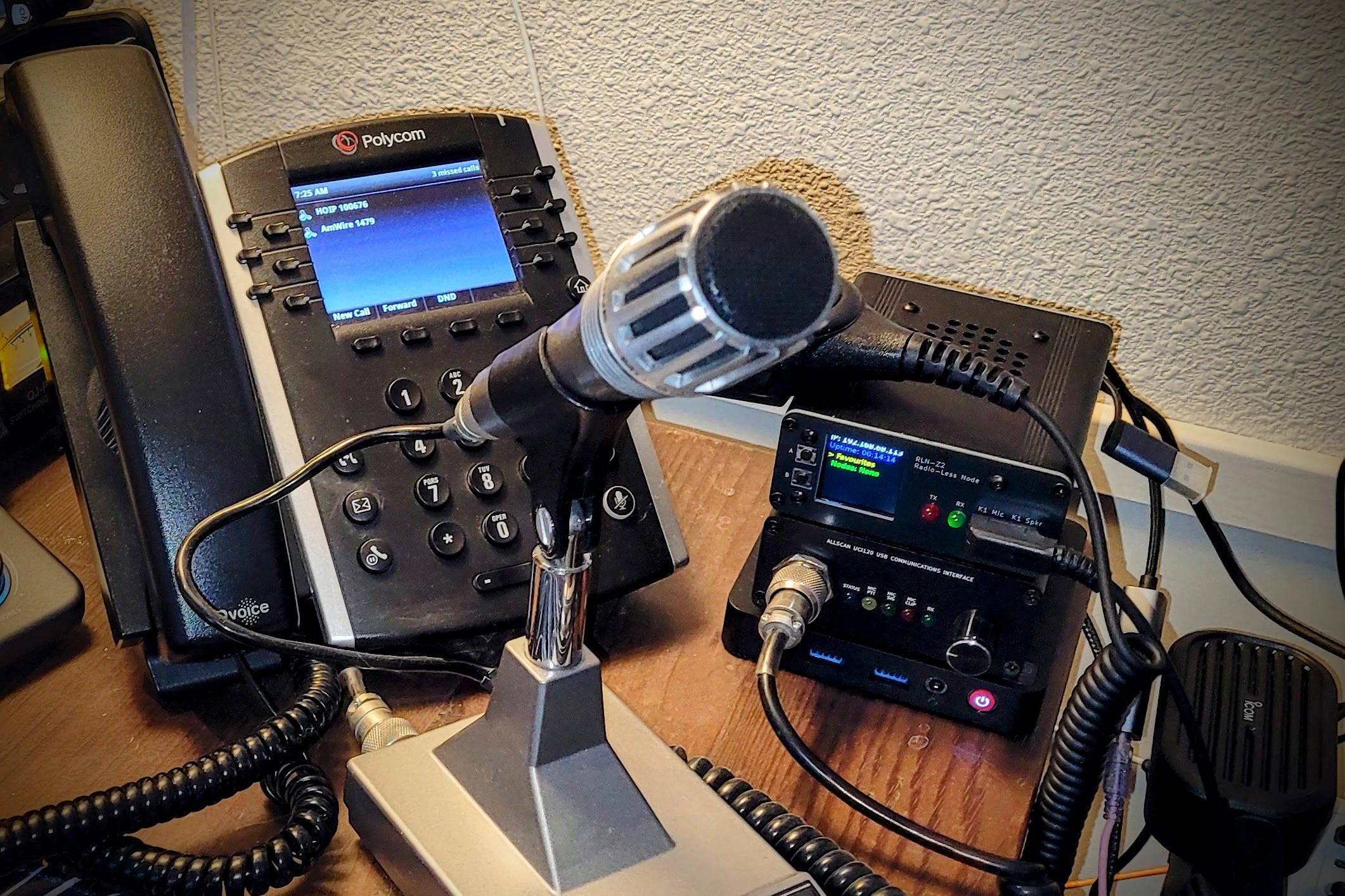
The next day, I put the AllScan UCI120 interface back into service. That device connects a Kenwood MC-60 desk mic with the tiny PC. It’s a great mix of old and new. Instead of the vintage speaker I used in Portland, I connected a small Icom portable speaker (affiliate link).
Here’s a snapshot of the temporary node stack. On the bottom is the Beelink T5 PC with the AllScan UCI120 above it. Stacked on top of the UCI120 is node 588415, the G1LRO RLNZ2 device.
And then I set up an every-30-minutes temperature check, logging the results. Overnight, the system was very stable:
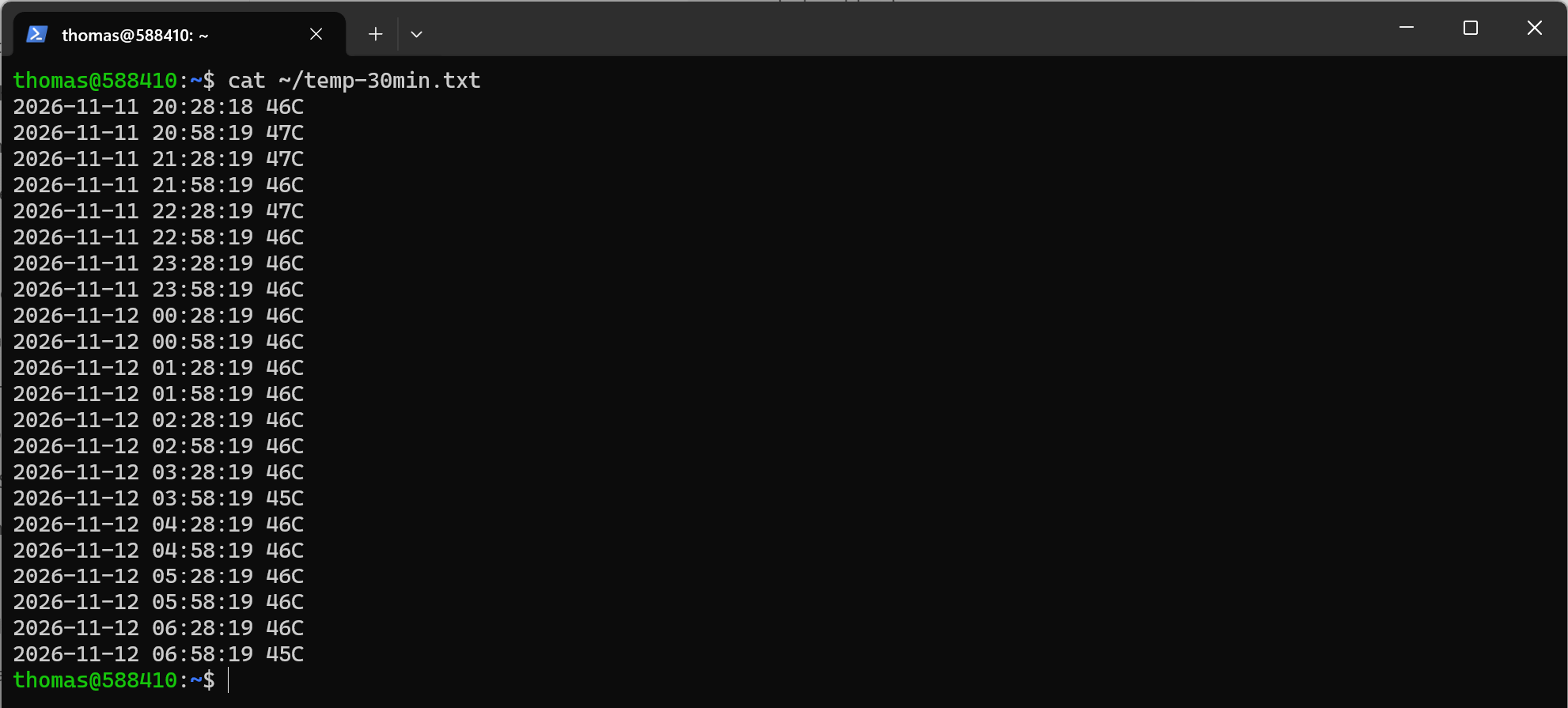
If you’re interested, you can run the code for that temperature check in a terminal window. However, doing it that way ties up the prompt, and it stops the moment you close the window or the connection drops.
To keep it running after a disconnect, I used a tmux session and ran a loop inside it. Start a tmux session named temps:
tmux new -s tempsA green bar appears at the bottom of the window. Now paste the loop:
while true; do z=$(grep -l x86_pkg_temp /sys/class/thermal/thermal_zone*/type 2>/dev/null | head -1); z=${z%/type}; [ -z "$z" ] && z=/sys/class/thermal/thermal_zone0; echo "$(date '+%F %T') $(( $(cat $z/temp) / 1000 ))C" | tee -a ~/temp-30min.txt; sleep 1800; doneIt prints the first reading right away. Then press Ctrl+B, let go, and press D to leave it running in the background.
You can check the status of the log file at any time from a normal terminal window:
cat ~/temp-30min.txtLater, to stop the tmux session, type this at the terminal:
tmux attach -t temps
Then press Ctrl+C to stop the loop and type exit to close the tmux session. The log file does not get deleted, so your test run remains available using the cat command shown above.
6. You Have a Password Manager. Now What?
Substack nudged me, again, to turn on two-factor authentication for Random Wire. I knew I should, and this week I finally did it. Partway through, Substack asked me to set up recovery questions. You know the kind: In what city did your parents meet? What was your first teacher’s last name?
I really detest these questions. The answers are often easy to dig up, and some of my personal details are things I’ve written about publicly. Worse, they’re a back door: if I ever lose my authenticator app, those answers can get someone into my account. Honest answers would undermine the 2FA I was setting up.
In the past, I’ve enjoyed giving made-up answers. (My first teacher was apparently Mr. FlufferL00p in one account.) That beats the truth, but this time I did it properly: I entered a password into each answer field. I had KeePass generate three random strings, saved them in my Substack entry with the questions they belong to, and pasted them in. That makes it much, much harder for anybody or anything to guess them, and I never have to remember them.
But this got me thinking. A lot of us installed a password manager and said, whew, now we are safe. And that’s true…to a point. A password manager is a safe, but it only protects what you put in it, and it only works if you use it well.
Here are good practices to follow.
Every site gets its own password. Many people moved their three favorite passwords into the vault and stopped there. If one site is breached, a reused password unlocks the others. Let the manager generate a new one for each site.
Security questions get random answers. Store them in the vault like passwords. Don’t reuse a made-up answer from one site to the next, either.
Backup codes go in the vault. When you turn on 2FA, most sites offer one-time backup codes. Save them in the same entry. They’re your way back in if you lose your phone.
The master password is long and used nowhere else. It’s now the most important password you have.
Back up the vault file. If your vault lives on one drive and that drive dies, every password goes with it.
Your email gets the strongest protection. Password resets go there, so whoever controls your email controls everything else. Use an authenticator app or a passkey, not text messages.
In KeePass, the random answers take about a minute. Open Tools, then Generate Password..., choose lowercase letters and digits, set a length of 16, and turn on Exclude look-alike characters on the Advanced tab. The Preview tab lists ready-made strings you can copy. Strings without look-alike characters are easy to read aloud if a support person ever asks.
None of this is hard. Using a password manager is the first step. Following good habits is what makes it pay off.

7. Not Radio
7.1 Computers, Coming and Going
Last Saturday, I made the journey to Portland to pick up my dry cleaning and do some errands. I left the lake house well before dawn, and despite some clouds and fog, I was treated to a lovely dawning of the day while I motored down I-5. (Depending on your language and region, you might read this as: I-5, or Interstate 5, or the I-5, or just the 5.)
There were a few computers in Portland I wanted to unplug and bring back to the lake to work on. One is a Dell OptiPlex 3050 small form factor PC. I thought it was off. It wasn’t. When I reached into the shelf to pick it up, the fact that the case was warm instantly registered. “This thing is on!” was followed by “what’s running on it?”
As it turns out, that machine was running my original WiRES-X system. Per my system, it had been named TOMWIRES. I previously moved that station to the lake house, bought a tiny PC, and installed the newest WiRES-X software on it. All is well with that new system. But TOMWIRES has one problem: it’s running Windows 10. The last automatic update landed in September. Extended updates ended in October 2026. There are no more updates available. Or to paraphrase a saying, Microsoft has no more updates to give about Windows 10.
So TOMWIRES is destined to become something else…perhaps another Linux box!
The other computer was definitely completely off. It was a Beelink SER3 mini PC that ran on my desktop for a few years. Name? TOMBEE. When I switched my primary computing to the Surface Laptop 7, I just turned that machine off. Well, it took a few hours to install long-needed updates to TOMBEE. And the very good news is it seems to be running fine. I’m going to listen to it for a few days to make sure there’s nothing stuck in the fan, or if I get a few spare minutes, I’ll just pull the cover and do a careful cleaning.
Dust gets in fans and it’s tempting to use a blast of canned air to clear that out, but the problem with that approach is it can spin the fan too fast. Use some non-conductive thing to keep the fan from spinning. I like to use a Q-Tip with the cottony tip cut off.
Do I have a use for TOMBEE? Nothing urgent comes to mind. The only real need right now is cleaning up the disk to use it as a spare Windows 11 Pro machine. I like having some spare computers. Most of my spares run Linux, usually Debian (but my old Intel-based MacBook Air runs Zorin).
And while I’m on the subject of computers, my Surface Pro 4 won’t boot. Research says the charger may not be sufficient (yes, it is, because I’m using the same one for my Surface Laptop 7), or the battery may be weak (true, because it’s old). But even charging it overnight doesn’t let it boot, so something on the software side (hopefully) is just stuck.
But…no. It won’t charge at all, so either the battery is cooked or there is a hardware fault. Either way, it’s not worth the cost to try to resurrect it. The battery replacement kit from iFixit isn’t too expensive, but it’s common to break the screen when removing it, and at that point, it is definitely not worth the repair cost.
I’m not heartbroken about it, either, because I’ve never liked the form factor. This is that Surface tablet with a kickstand behind. It’s just a pain to use and it weighs about the same as my Surface Laptop 7.
However, it served as a spare Windows 11 Pro machine I could throw in a bag. Time to replace it. After digging around on eBay for a few hours, I found a ThinkPad X1 Carbon Gen 8 for a reasonable price. An i5 CPU would have been fine so the i7 on this unit is a bonus. I offered $30 below the ask and the offer was immediately accepted.
The description says it has some scuff marks here and there, but that’s fine. Its purpose is to be a backup machine with more than enough juice for me to maintain the Random Wire, EtherHam, and more. I was looking for a Gen 9 or Gen 10 machine with 16 GB of RAM, but the candidates I found were either in rough shape or priced well above market.
I generally like the ThinkPad X1 Carbon laptops, so I’m sure this will be a usable device for me. I’ll let you know how it goes once it arrives next week.
7.2 Discovered and Fixed an EtherHam Website Issue
At one point, I migrated my content from one site to another, and the importer was supposed to bring the images over. It didn’t, at least not completely. I found 111 instances of images still being served from the old host.
That’s too many to try to fix by hand, so I worked up a Python script to bring the images into EtherHam. First, though, I backed up the entire site, and that took more than an hour…but it was important to do before monkeying around on the server.
(While I was doing that, I was listening to music. My app — MusicBee — was stuttering, so I told it to download complete tracks to memory. That worked. Then I shifted my Apple wired EarPods to the Fosi Audio K5 Pro DAC (affiliate link). Even cheap headphones and earbuds benefit from a DAC. Using the tone controls really enriched the sound. I find the DAC also adds a bit more presence to the music.)
One of the challenges is that the old posts had a number of images in .heic format. That’s an Apple image format that most popular browsers don’t render. The good news is that WordPress automatically converts them to .jpg format.
The script moved all 111 images, and EtherHam now serves every one of them itself. Whew. Dodged a problem.
7.3 Another week of security and scripts
Once again, it was a week of security and script updates, but I did get some radio time in. The highlight was resurrecting node 588410 that combines a vintage Kenwood desk mic with the most current ASL3 platform available.
73, and remember to touch a radio every day!

Notice: As an Amazon Associate, I earn from qualifying purchases.